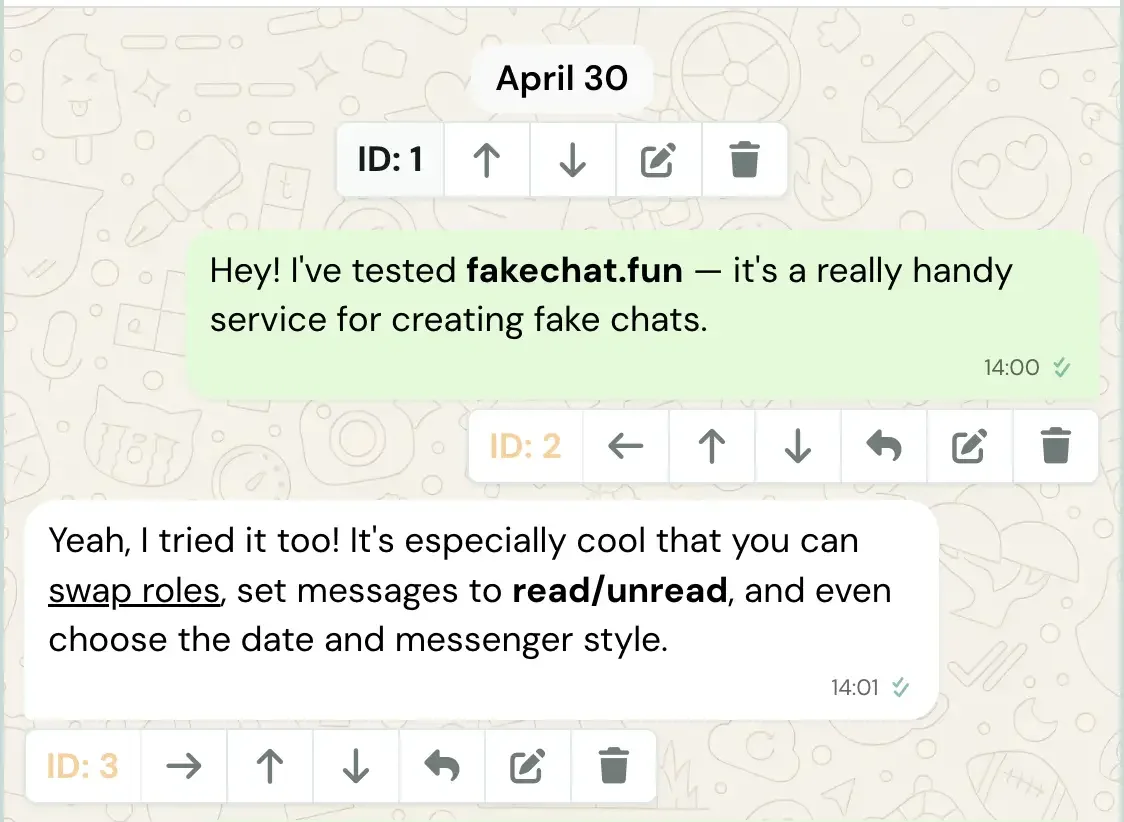
How do you make a fake conversation look lively and natural? In FakeChat.fun generator, you can do much more than typing plain text: attach photos, stickers, call logs, and easily rearrange message order. In this guide, we'll break down all editing tools to help you craft an authentic dialogue.

Adding Elements to the Chat
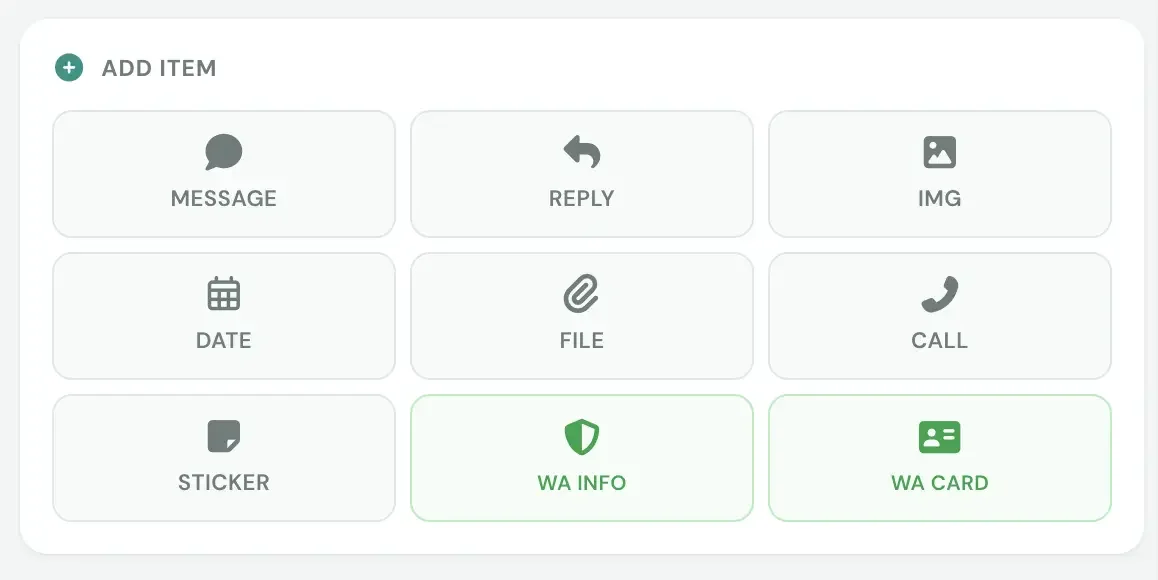
message block types in generator
Message block selection panel

The following message block types are available in the generator. For a complete list of generator capabilities, view our feature grid on the homepage.

Regular

Standard text message. Supports rich formatting: bold text, active links, and line breaks.

Reply

Quoted previous message with your response underneath. Perfect for mimicking an active conversation.

Image

Add photos or graphics to the chat. Appears as a thumbnail with zoom capability.

Date

Centered date divider, such as "Today" or "May 12". Splits dialogue into logical timeframes.

File

Attach documents with title and file size (e.g., "14.2 MB"). Adds realism to business chats.

Call

Audio or video call log card with duration and call status: Incoming, Outgoing, or Missed.

Sticker

Stickers from built-in collections or custom uploads. Brings your conversation to life.

WA Info

WhatsApp system notification, such as end-to-end encryption or phone number change notices.

WA Card

Unknown contact prompt card suggesting to add the person to address book. Common in real WhatsApp chats.

Message Settings
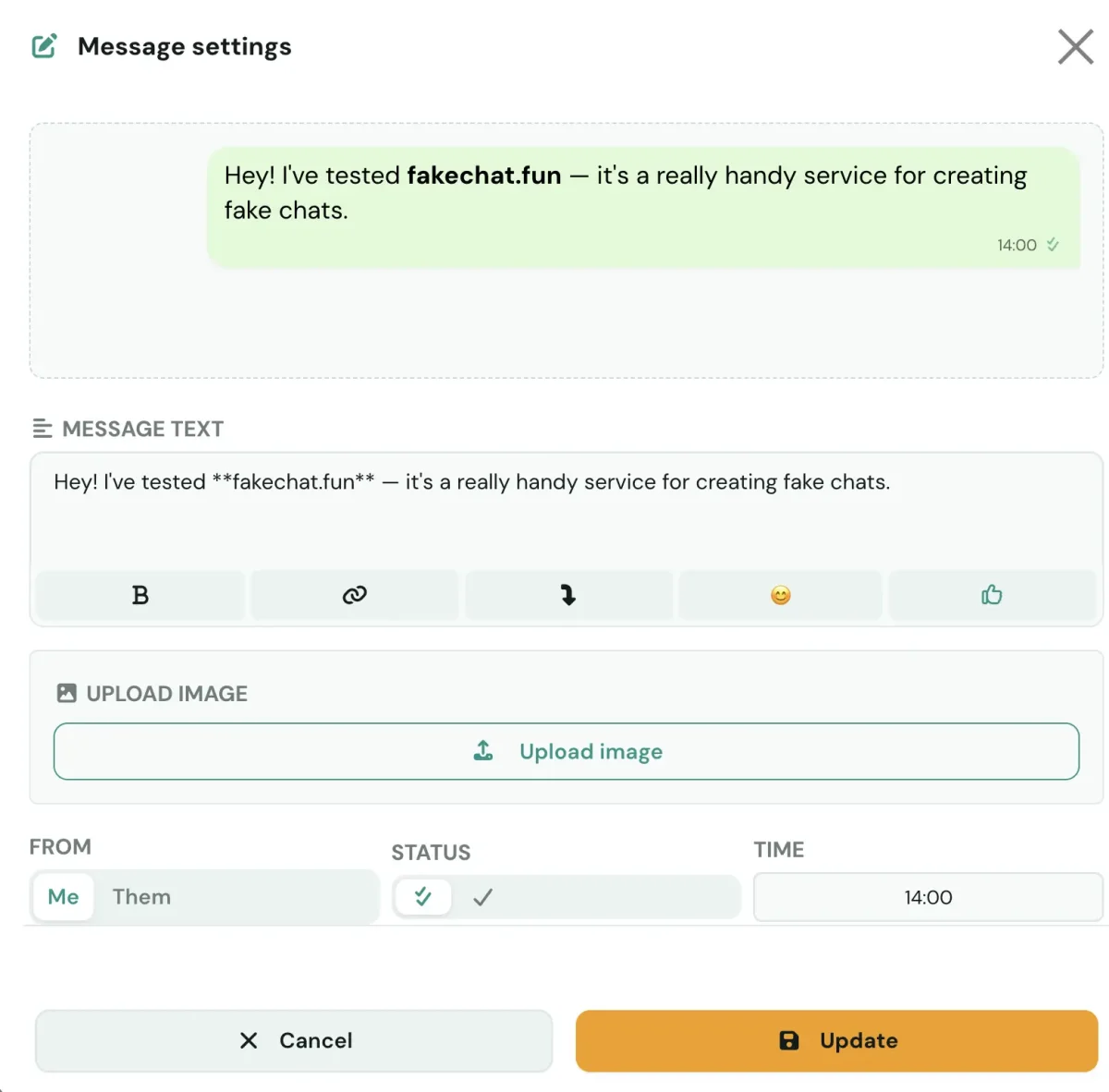
message settings in generator
Text, image, sender, status, and time configuration panel

Selecting a message block opens its detailed settings panel. Here you can configure all elements visible on the final screenshot. Message colors can be customized in our theme customization guide.

Message Text Main text input box. Quick formatting buttons are conveniently located right above it.
Bold Text Highlight words and click "B". Bold formatting draws focus to key phrases.
Hyperlink Highlight text and click the link icon to convert it into a blue underlined hyperlink.
Line Break Click line break to split text into multiple paragraphs inside a single message bubble.
Emoji Picker Open the emoji picker to add expressive emotions directly into your text.
Message Reaction Add emoji reactions attached to the message bubble from any chat participant.
Upload Image Upload photo attachments from your device. Images automatically fit chat preview bounds.
Sender Role Toggle between "Me" and "Them" to switch message authorship instantly. Participant names are configured in our profile settings guide.
Delivery Status Toggle ✔ and ✘ icons for message delivery and read receipts. One checkmark means "sent", two checkmarks mean "read".
Timestamp Set precise message timestamp. Authentic times add conviction to your conversation scenario.

Managing Messages in the List

chat generator preview
Managing messages: reordering, switching sender, replying, and deleting
Reordering Messages Use "Up" and "Down" arrows on any message card. Forgot a line in the middle? Simply create it and shift it into position without rewriting the whole dialogue.
Quick Sender Swap Click "Me ↔ Them" toggle if you accidentally assigned a message to the wrong character.
Reply Feature Click reply to quote a selected message, creating an authentic quoted response just like in real messaging apps.
Delete Block Click the trash icon to remove unnecessary messages from your conversation.

Once your dialogue is set, align the screenshot frame using the scroll tool, then download your screenshot.

Frequently Asked Questions

Yes. You can attach photos, documents with file names and sizes, stickers, and audio/video call logs to make chats realistic.
Use the up and down arrow buttons on any message card to shift messages to any position without rebuilding the chat.
Highlight text in the input box and click "B" for bold formatting or "Link" to transform text into a clickable blue link.
Clicking the reply button on a message attaches a quoted preview of that message above your new response, just like in real messaging apps.
Yes. Click the "Me ↔ Them" toggle on the message card to instantly switch message authorship.