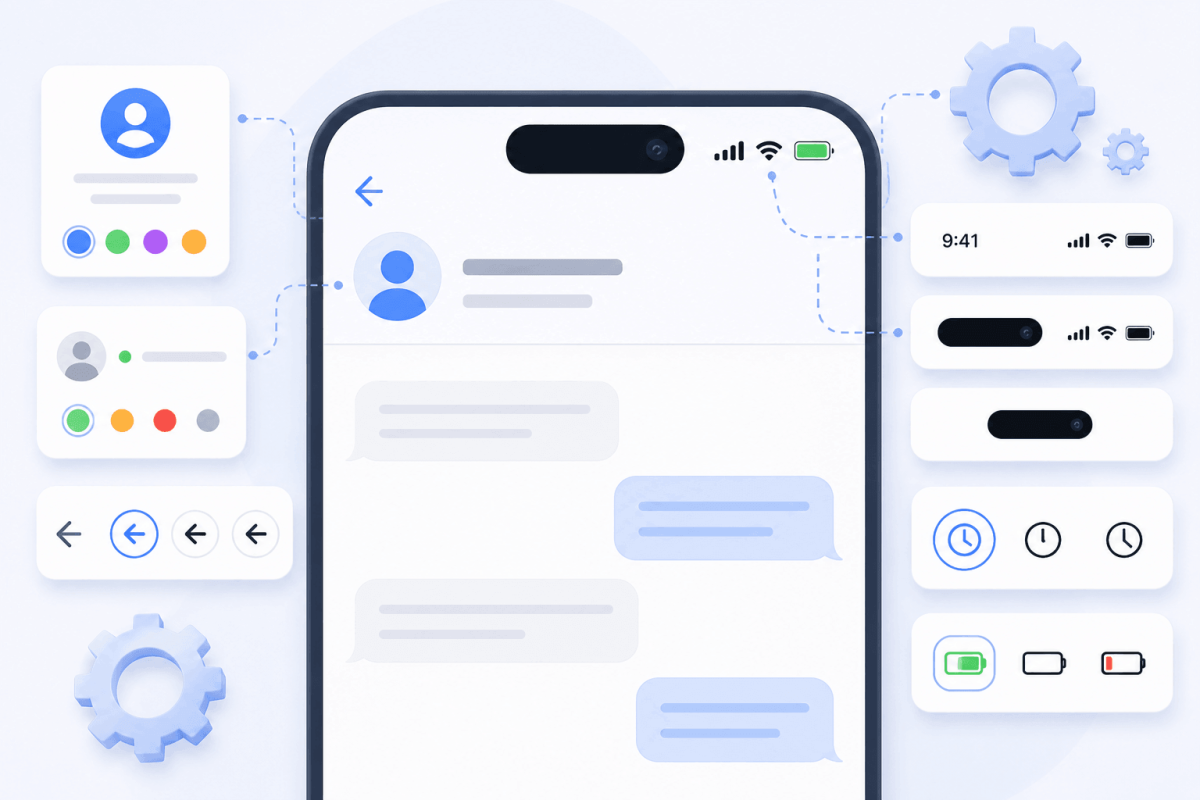
How to set up the profile and status bar in a fake chat generator
The credibility of a generated screenshot largely depends on correctly configuring the top panel and the chat partner's profile. In this guide, we break down all the settings that will help make your conversation as realistic as possible.

Setting Up the Chat Partner's Profile
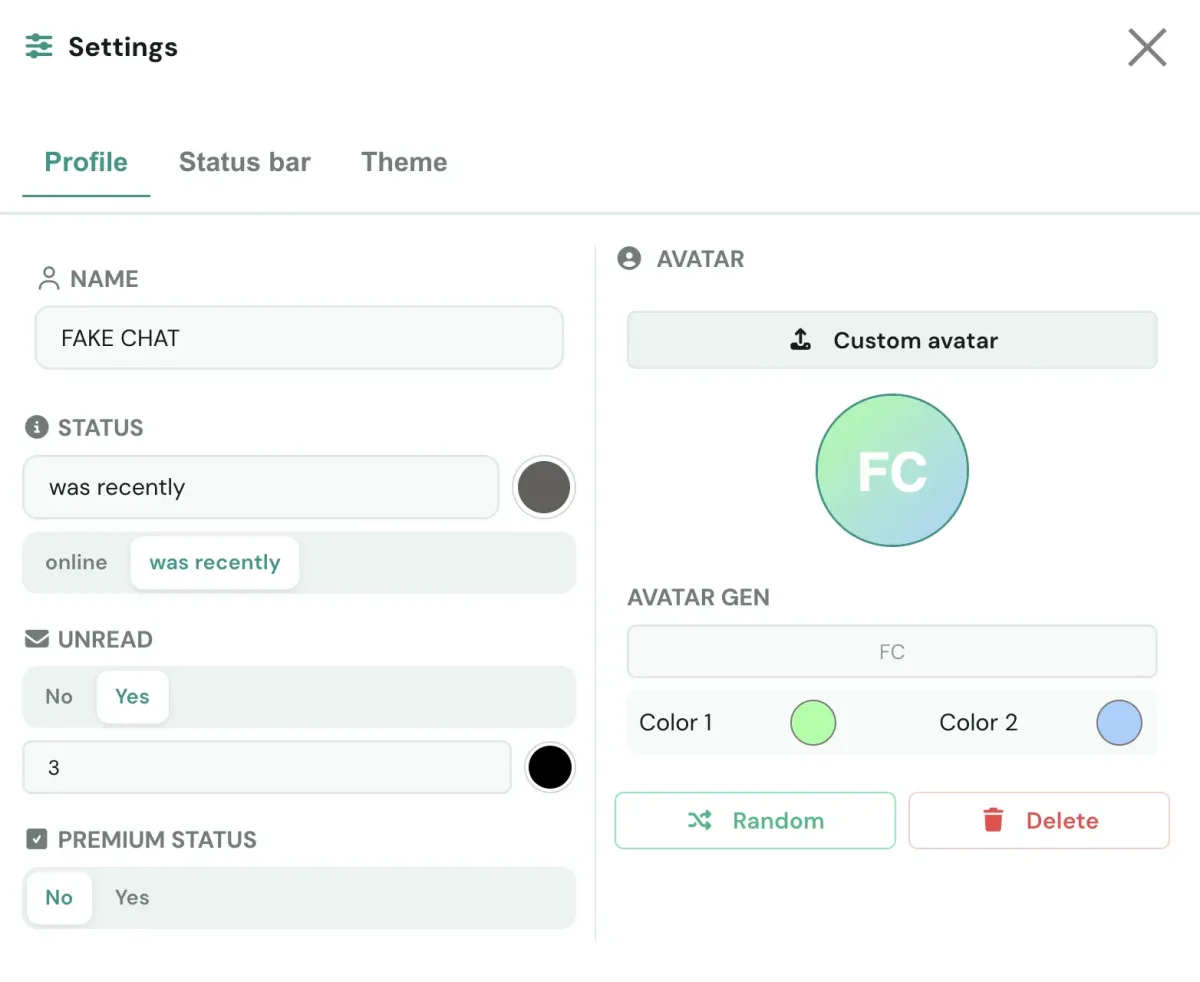
Chat partner profile settings panel
Chat partner name Field for entering the contact's display name. Nicknames, bot names, and phone numbers are all supported. This value is used to identify the chat partner in the conversation header and in messages.
Activity status Preset statuses are available: "online", "last seen recently", "typing..." or any custom text. The "typing..." status creates the effect of a live conversation — use it during tense moments in the chat. The status color can be changed.
Verification and premium status A flag that controls the display of the verification badge. Preset options include: a blue verification checkmark, a Telegram Premium star, and the option to upload a custom SVG badge. Designed to imitate accounts of public figures and brands.
Navigation elements You can set the number of unread messages (e.g., 99+) or keep the standard back button labeled "Back".

Setting Up the Chat Partner's Avatar

Method 1 — Image upload: PNG, JPG, and WebP formats are supported. Recommended resolution — at least 512×512 pixels. The image is automatically scaled and cropped to a circular shape. The avatar is displayed next to the chat partner's messages.

Method 2 — Initials generation: If no image file is provided, the system generates an avatar automatically. Parameters: enter 1–2 letters (Latin or Cyrillic), adjust the two-color background gradient, font size, weight, and text offset along the X/Y axes. The "Random" button automatically selects a color palette.

Status Bar Configuration
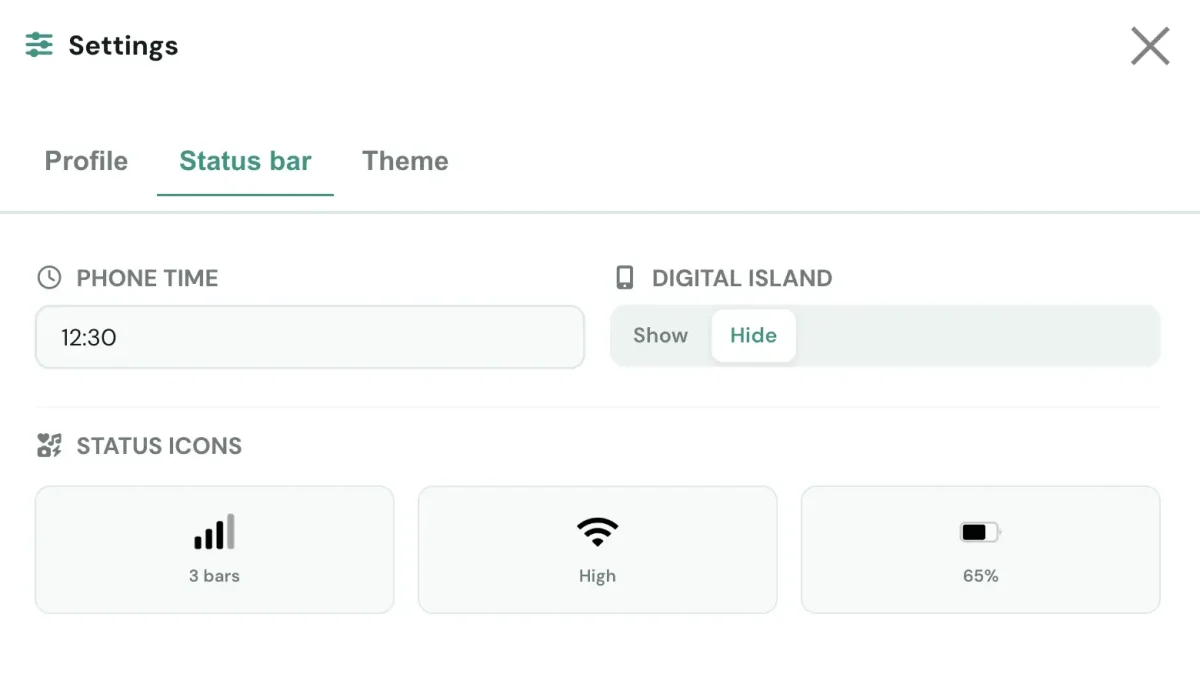
Status bar configuration panel

Status bar settings allow you to make the screenshot as realistic as possible. The status bar color scheme syncs with the selected theme.

System time

Time input field in HH:MM AM/PM format (e.g., 09:41 or 09:41 AM).

Battery level

Toggle for displaying the battery level. A charging icon (lightning bolt) is also supported.

Network indicators

Signal strength display settings (1–4 bars), selection of the number of active SIM cards, and switching between Wi-Fi, LTE, and 5G icons.

Dynamic Island

Emulates the hardware cutout at the top of the screen found on iPhone models with a notch (iPhone X, XS, XR, 11). Adds the messenger's logo and name to the screenshot.

Terms of use: Generating fake conversations is permitted for entertainment, educational, and creative purposes only. Use in fraudulent schemes, for defamation, or to impersonate real individuals without their consent is prohibited and carries legal liability.

Frequently Asked Questions

Yes. The image upload module supports PNG, JPG, and WebP formats. Recommended resolution — at least 512×512 pixels to preserve quality when scaling.
The interface includes a text field for manual input. Strings of any format are supported: "last seen yesterday at 10:15 PM", "online 5 minutes ago", "typing...", etc.
Enter a nickname and the system will generate an avatar with the given initials: a two-color gradient, a font with adjustable size, weight, and offset. The "Random" button triggers automatic color palette selection.
Dynamic Island emulates the hardware cutout at the top of the screen found on iPhone models with a notch (iPhone X, XS, XR, 11). Enabling this flag adds the messenger's logo and name to the top of the screenshot, improving visual credibility for devices with this form factor.
Yes. The configuration panel includes a color selector to choose the status text color. A standard palette is available.
Yes. The generator allows you to add multiple participants to a single conversation. You can configure the name, avatar, and status for each chat partner separately. To learn how to create messages for different participants, read the message creation guide.
The generator interface has a "Download" button. When clicked, the screenshot is saved in PNG or JPG format at high resolution. Learn more about downloading in the dedicated guide.
The generator allows you to export a created conversation to a JSON file for backup or transfer to another device. The saved conversation can be imported back at any time to continue editing — all profile, status bar, and message settings are fully preserved. Learn more in the chat saving and loading guide.
Yes. For Telegram, premium status and stars settings are available; for WhatsApp — read receipts (blue checkmarks) and "typing..." status; for Instagram — Direct message settings. All interface elements adapt to the selected platform. Learn about choosing a messenger in the theme customization guide.