How do you make a long conversation look aesthetic in a screenshot?
The FakeChat.fun generator features a viewport scroll tool that lets you choose exactly which part of the dialogue falls into the visible area. In this guide, we'll explain how to scroll screenshots and anchor them to specific messages for precise frame alignment.
How to Use Scrolling: Step-by-Step Guide
01
Locate the Slider
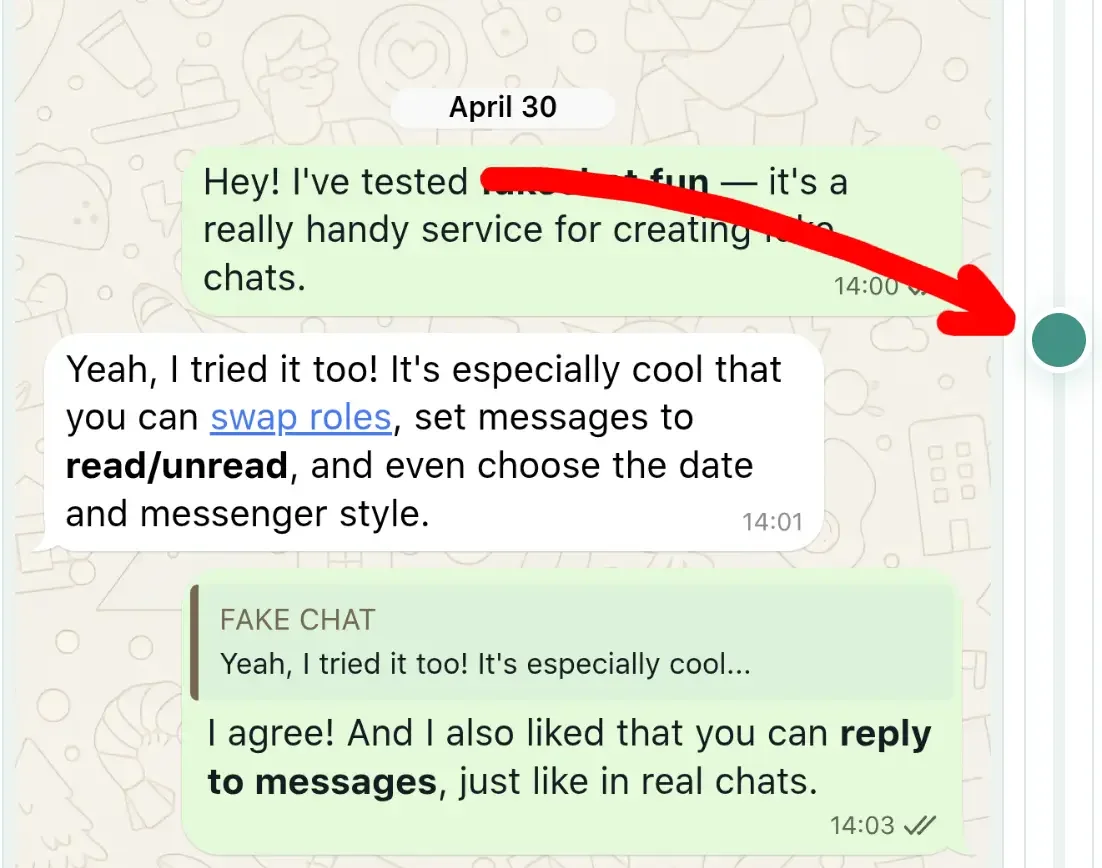
The slider is located on the right side of the screenshot preview window, next to the phone mockup.
02
Move the Thumb
Move the slider up or down—the screenshot updates automatically in real time without extra clicks.
Instant Visual Update
As you move the thumb, the visible frame adjusts live. You can instantly see the result and fine-tune your composition.
Selecting a Message to Anchor Scroll
Selecting a message in the list to configure screenshot framing
When creating long dialogues, you often need to highlight a specific conversation segment. The framing tool allows you to control the visible area using message anchoring and the scroll slider. Learn how to create and format messages in our message formatting guide.
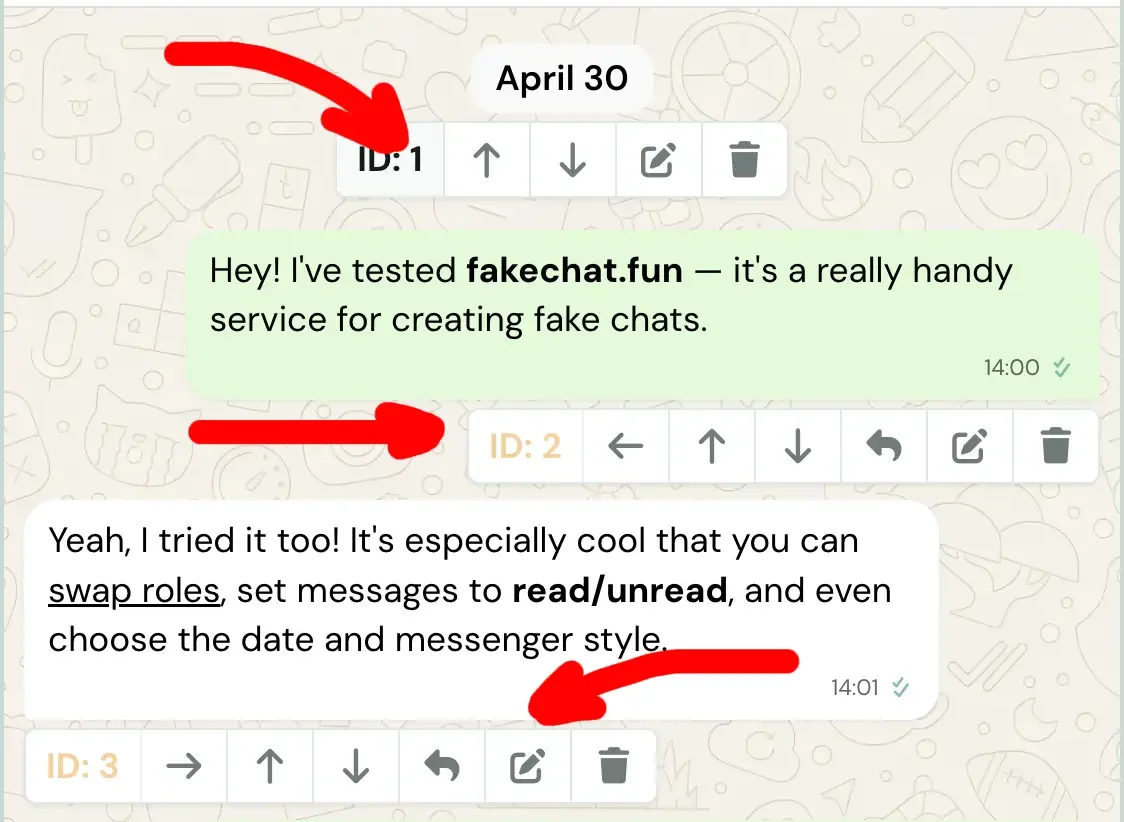
Click Message ID or CardClick the ID number or message card area in the list. This sets an anchor point—the selected message becomes the top boundary of the visible screen area.
Automatic CenteringWhen you click a message, the slider automatically shifts so the selected message appears in the center of the frame. This allows you to quickly locate desired dialogue segments.
Scroll Slider Fine-Tuning
Screenshot scroll slider control
Visible Area OffsetThe slider controls the vertical content offset inside the phone mockup. Its position determines how many pixels the chat shifts relative to the anchored message.
Scroll Step and Large ImagesThe slider provides fine adjustment steps. If your dialogue contains large image attachments, scrolling may be constrained—selecting a smaller adjacent message is recommended.
Scrolling allows you to work with dialogues of any length. Instead of shortening your chat, keep the complete conversation and frame the exact fragment you need. Once aligned, you can download the finished screenshot.
Frequently Asked Questions
Click the message ID or card in the message list. The generator sets the anchor point and automatically centers the slider on that message.
The slider controls vertical content offset inside the frame, defining pixel padding from the top screen border to the selected message.
This typically happens when large image attachments are present in the chat. Select a smaller adjacent message block for smooth scrolling.
Yes. Click a different message to change the anchor point or slide the thumb back to its initial position.
Create Fake Chat Now
Go to the generator, customize your chat and download the screenshot.