
 English
 Русский
 Deutsch
 Français
 Español
 Italiano
 Português
 Türkçe
 Čeština
 한국어
한국어
 中文
中文


The scroll function allows you to precisely control which part of the conversation will be visible in the screenshot. In this guide, we will analyze in detail how to manage chat scrolling to create the perfect screenshot.
Use the scroll slider to the right of the preview window. When moving the slider, the screenshot automatically updates in real-time.
What is the Scroll Function
The scroll function allows you to control which part of the correspondence will be visible in the final screenshot. This is especially useful when the dialogue contains many messages, and you need to show a specific fragment.
- Automatic Update: the screenshot updates immediately when moving the slider.
- Precise Positioning: possibility to link to a specific message via ID.
- Visual Indication: the number of the selected block is displayed in the slider circle.
Working with the Slider
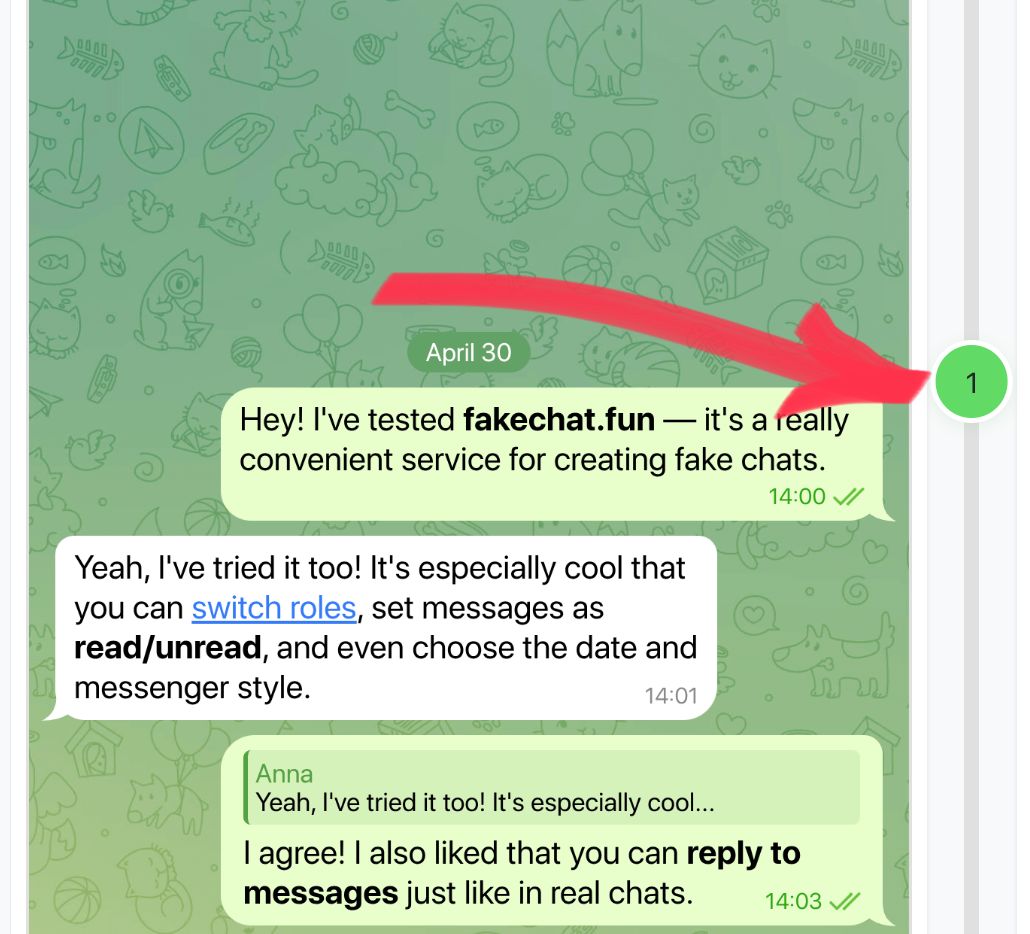
To the right of the screenshot preview window is a special slider. Just move the slider up or down — the screenshot automatically scrolls with a slight delay.
Find the Slider
The slider is located on the right side of the screenshot preview window, next to the phone image.
Move the Slider
Move the slider — the screenshot will update automatically without additional clicks.
Scrolling to Message
For precise positioning on the desired message, use the ID system. The selected ID is linked to the slider and displayed in its circle.
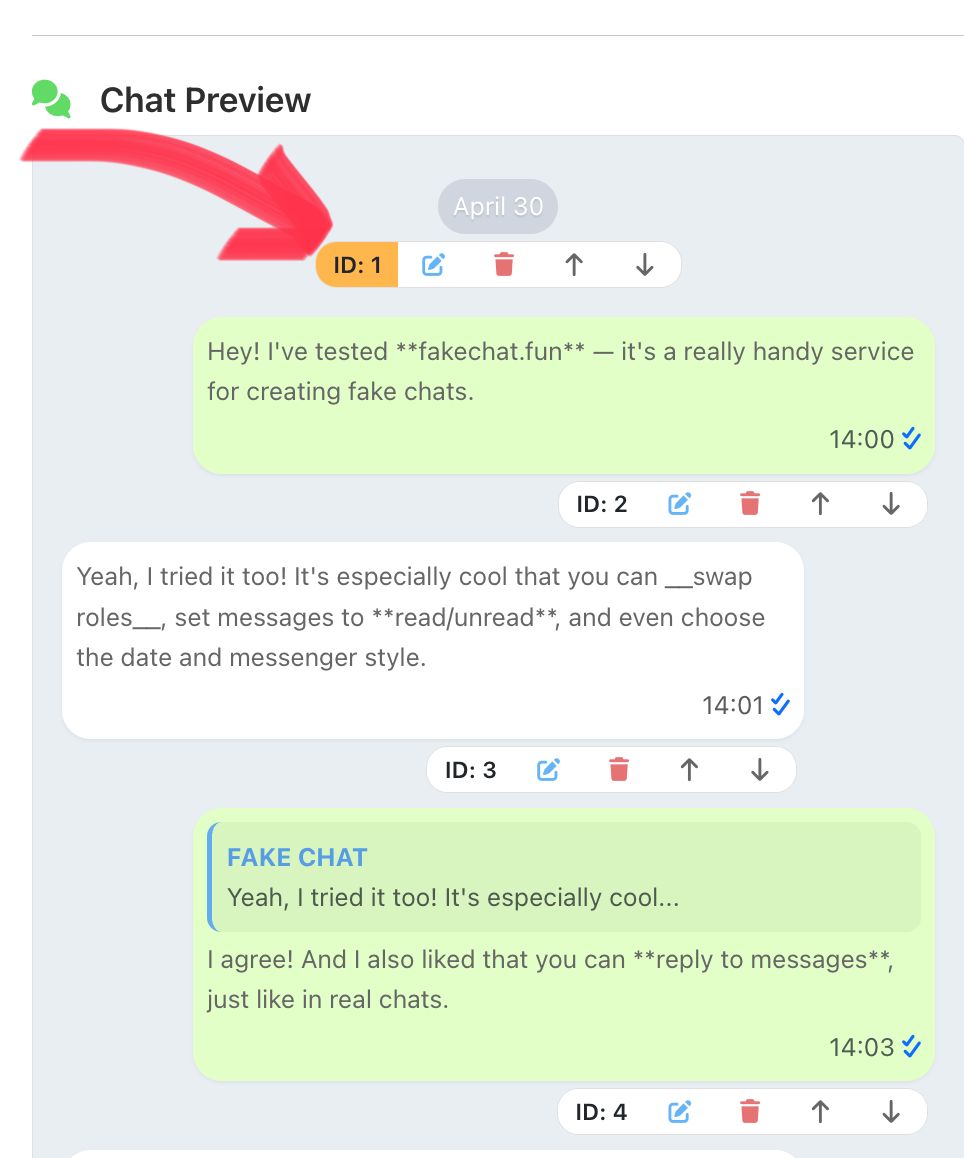
Step-by-step instructions:
In the "Chat Preview" section (draft list at the bottom).
Click on the gray ID button (e.g., ID: 5). The button will turn yellow.
Or click the "Show Preview" button. The screenshot will center on the selected ID.
When selecting another message, move the slider again to update the position.
Create a Screenshot Now
Go to the generator, set up the chat, and download the screenshot.