
 English
 Русский
 Deutsch
 Français
 Español
 Italiano
 Português
 Türkçe
 Čeština
 한국어
한국어
 中文
中文


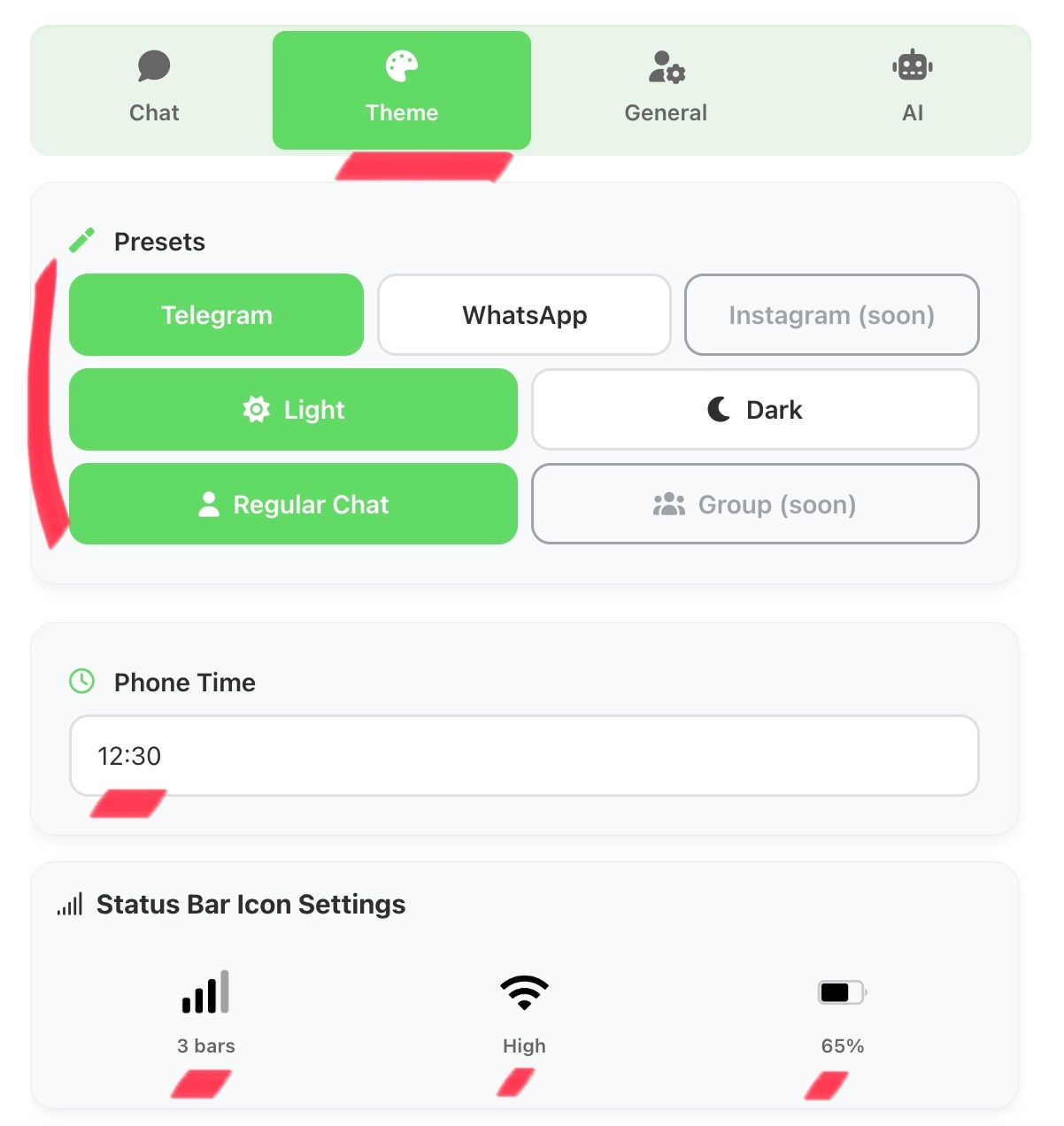
In the fakechatfun.com generator, you can flexibly manage the interface theme and customize the colors of various chat elements. This step-by-step guide details the key functions of the "THEME" block and screenshot customization options. Switching between light and dark themes, as well as individual color settings, are available in a separate tab.
Switching the Theme
Open the Tab
Go to the "THEME" tab in the control panel.
Find the Switch
It is responsible for the messenger theme (the chat interface itself).
Select Option
The chat interface will become dark or light upon the next generation.
Customize Colors
In the "Color Settings" section, you have full control over the palette. You can change the hue of each element to perfectly match your device's style or create a unique design.
Configured separately for the sender and receiver. Gradient (top/bottom) can be set.
Color of the main text, status (online), message time, and text in the input field.
Fine-tuning colors for quoted messages and reactions placed.
Background and text color for date badges, as well as system dividers.

Preview Changes
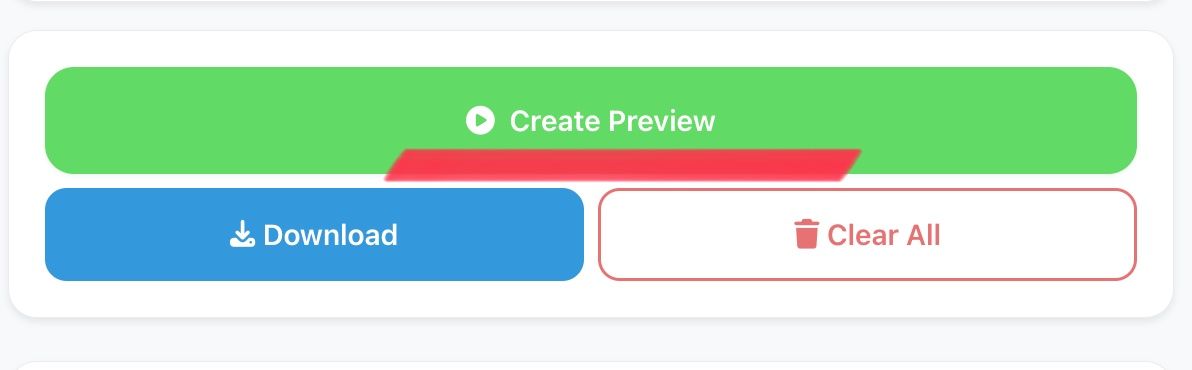
To get the finished screenshot, click the GENERATE PREVIEW button.
Create a Screenshot Now
Use theme and color settings right now in the chat generator.