
 English
 Русский
 Deutsch
 Français
 Español
 Italiano
 Português
 Türkçe
 Čeština
 한국어
한국어
 中文
中文


The generator has a powerful chat backup system. In this guide, we will analyze how to save your templates in JSON format, transfer them between devices, and restore correspondence in a couple of clicks.
All backup management tools are located on the "SETTINGS" tab.
Automatic Saving
By default, your chat is automatically saved in the browser's localStorage.
This means that when you close the tab or reload the page, the data will be saved locally.
Chat Export
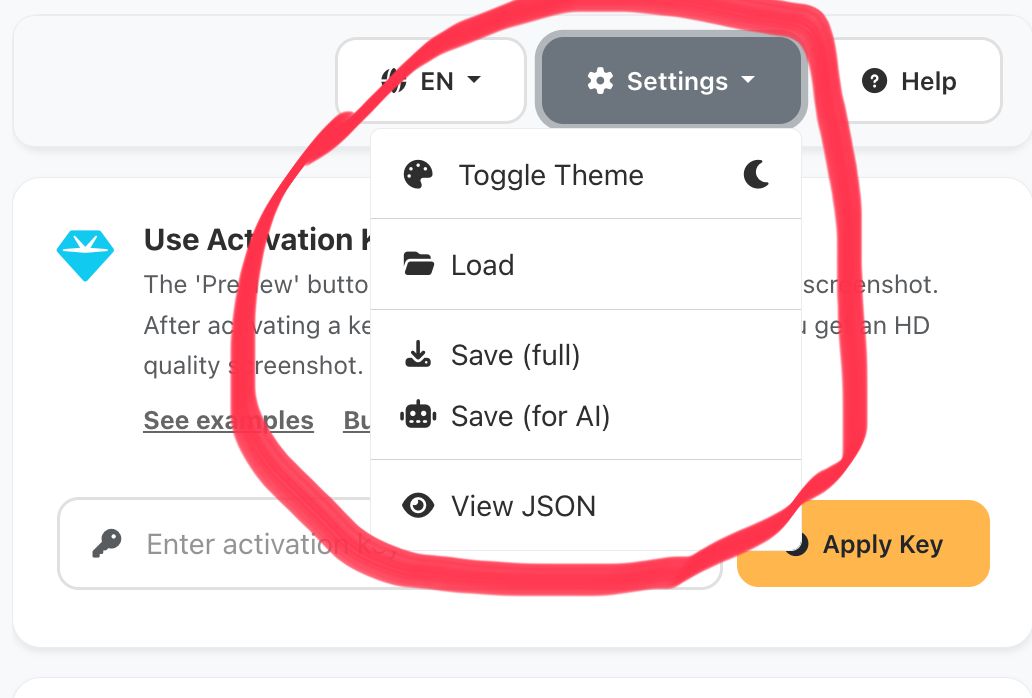
Two export options are available for creating a chat backup. The system will download a .json file, which can be stored on a computer or sent to colleagues.
Includes absolutely everything: text, settings, and all media files (pictures, avatars).
- Saves images
- Ideal for transfer
Downloads only structure and text without pictures. The file takes up minimum space.
- For neural networks
- Minimal weight
Chat Import
The import function allows you to load a previously saved chat. The system will fully restore the structure, messages, and settings.
Step-by-step instructions:
In the generator menu.
Located in the template management block.
Choose the file on your device that you saved earlier.
Wait for the load — the chat will update instantly.
Usage Cases
- Share with the team: send the JSON file to a colleague so they can continue editing.
- Data Transfer: start creating a chat on your phone, save the file, and continue on your PC.
- Template Library: create templates for different situations and load them as needed.
Create a Screenshot Now
Try export and import right now in the generator.